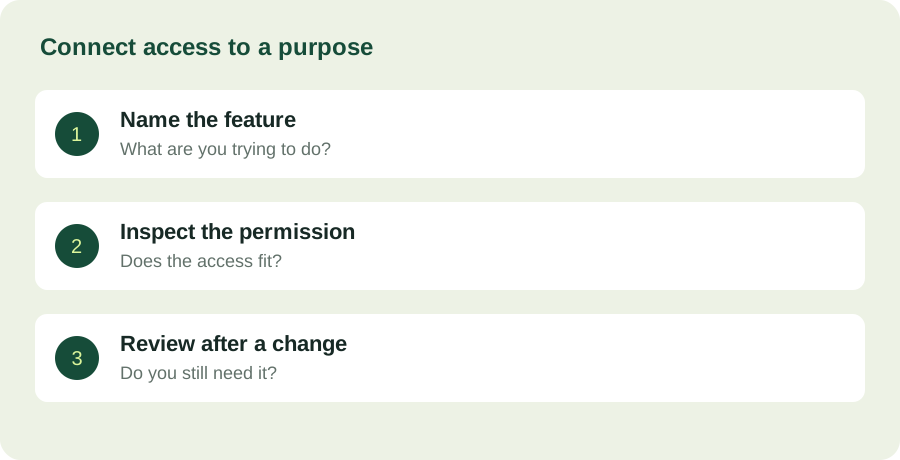
Ask what you are trying to do
A permission request is easiest to understand in the context of an action. A recording feature may need microphone access; attaching a picture involves access to media. The useful question is whether the requested access makes sense for the feature you chose, not whether all permissions are inherently good or bad.
Write down the action that triggered the request. If you cannot connect the action to the requested capability, consult the developer's current explanation before continuing. A product's popularity is not an explanation, and a confident statement from an unrelated website is not a substitute for understanding the request.
Use the controls actually available on your device
Android provides ways to review permissions for an individual app and by permission type. The exact choices can vary by Android version, device and permission. Google's current help explains the settings route and describes choices such as allowing access while an app is in use where that option is supported.
Do not follow a screenshot as if it guaranteed an identical menu on every phone. Start from your device settings and consult the manufacturer's instructions when labels differ. Avoid installing an unrelated utility merely because a guide claims it is necessary to change an ordinary system setting.
Change one thing and observe the effect
If you are investigating whether an optional feature needs access, change one relevant setting at a time and try that feature with non-sensitive material. Record what stopped working and what remained usable. This is a suggested troubleshooting method, not a security test or a certification of the app.
A permission being technically necessary for a feature does not mean you need that feature. You may prefer typing an address to granting location access for a one-time search. Conversely, a navigation workflow may reasonably depend on location. The decision should reflect the job you want the application to perform.
Separate access from retention
System permissions help control access to device capabilities. They do not, by themselves, explain how a provider stores information already sent to its service. For that question, read the provider's current privacy and deletion documentation. Disabling a permission is not the same action as deleting an account or requesting removal of server-side data.
This distinction becomes especially important when an application handles personal photos, voice recordings or sensitive records. Decide what you want to stop: future collection, local access, notifications or retention of existing information. Different controls may be required for different goals.
Revisit permissions when the use changes
A permission that made sense during a trip may no longer match how you use the app at home. Review access when you stop using a feature, replace a device or change the purpose of an account. That is a more practical habit than trying to memorize every permission at installation.
The end result should be understandable: you can explain why an app has the access it has, or you have decided to stop using the feature that requires it. This approach cannot establish that an application is secure, but it can make your own choices more deliberate and easier to maintain.