 appuza
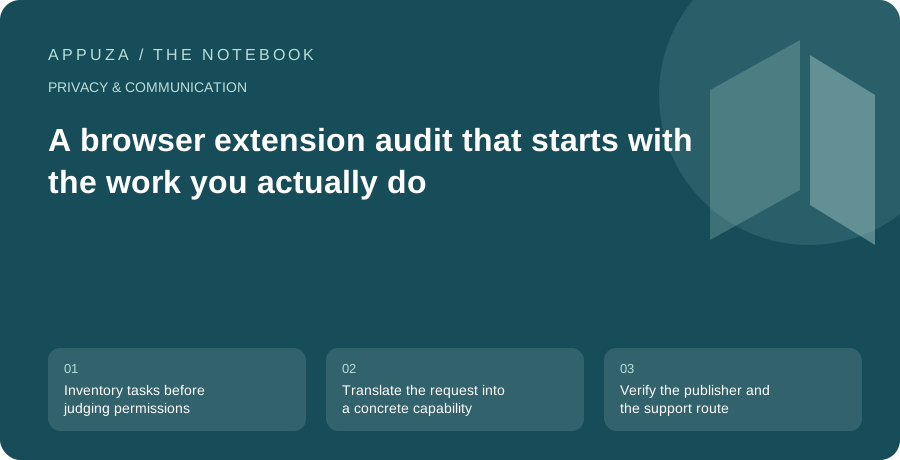
Inventory tasks before judging permissions
An extension audit is more useful when it begins with the tasks the browser must support. Write down the things you actually do: fill passwords, annotate research, translate articles, join work meetings, or capture a full-page image. Then open the installed-extension list and connect each extension to one of those tasks. An extension with no current purpose is a candidate for removal even if its name sounds helpful. An extension that supports a daily task deserves a closer look before you disable it.
This approach avoids two weak shortcuts. A large installation count does not establish that a particular tool belongs in your browser, and a broad permission request does not by itself prove malicious behavior. Some legitimate tools need substantial access to perform their function. The decision is whether the access is understandable and worthwhile for your use, and whether you trust the publisher with that role. Mozilla's permission documentation is a useful reference for interpreting the words in Firefox's prompts.
Translate the request into a concrete capability
Read the permission text as an explanation of what the extension can do, not as a decorative warning. Access to website data may be necessary for a password manager to recognize a sign-in form or for an annotation tool to modify a page. The same capability can matter differently on a public recipe page and a private work dashboard. Ask whether the extension needs access on every website or only on the sites where you use its feature.
Where the browser and extension support optional permissions, review those separately. Firefox exposes optional extension permissions in its add-on management interface. Denying an optional capability may disable only the corresponding feature, but the exact behavior belongs to the extension. Try the task after changing the setting. If a clipping tool still saves public articles without access to an unrelated site, you have found a narrower configuration. If the task stops working, decide whether restoring the permission is justified rather than repeatedly dismissing the resulting prompt.
Verify the publisher and the support route
Use the browser's official extension listing and the publisher's own website to establish who maintains the tool. Compare the publisher name, linked support page, and description of the product. This is especially important for extensions with generic names such as PDF helper or meeting assistant, where similar branding can hide meaningful differences. A familiar logo in a search result is not enough to establish that you found the intended project.
Look for a clear explanation of data handling and a functioning support route. You do not need to turn an ordinary extension decision into a full software audit, but unanswered basic questions are relevant. Does the tool process the page locally or send information to a service? Is an account required? What happens to saved material when you remove the extension? If the publisher's description does not answer a question that matters for your work, keep sensitive pages outside that extension's scope or choose a workflow you understand better.
Remove overlap before adding another security tool
Several extensions can perform similar tasks while making the browser harder to understand. Two page blockers may produce overlapping rules. Multiple password-saving tools may compete to fill the same form. Several coupon or shopping assistants may all inspect the same checkout page. The resulting prompts and broken controls can encourage users to approve access reflexively because they no longer know which tool is responsible.
Choose a primary tool for each recurring task and test whether the others add a distinct benefit. For password filling, that might mean deciding which manager is authoritative and disabling competing save prompts through supported settings. For research capture, it might mean retaining the tool that preserves citations and removing a second clipper used only once. Do not delete stored information until you understand where it lives. An extension can be merely an interface to a cloud account, or it can hold local data whose removal needs an export first.
Use a reversible removal sequence
Start with an extension whose purpose is unclear or whose task has disappeared. Disable it temporarily if the browser offers that option, then perform the ordinary work that might depend on it. Open a typical document, sign in to a familiar service, and check the relevant export or capture workflow. If nothing important breaks, remove it. If a necessary function disappears, identify that function explicitly before deciding to restore the tool.
For work-managed extensions, the correct route may be an administrator rather than a local removal attempt. Do not bypass an organization's controls to simplify your list. Instead, document the observed conflict and ask whether the extension is required. For personal extensions, preserve only the data you actually need before uninstalling. Avoid keeping unencrypted exports in the Downloads folder indefinitely. The cleanup should reduce access and clutter, not create a new pile of sensitive files outside the application that previously protected them.
Recheck after a meaningful change
A calendar reminder can help, but specific events are better triggers for a focused review. Revisit an extension when it requests new permissions, changes ownership, stops supporting a needed website, or introduces an account requirement that was not part of your original decision. Read the current explanation before accepting the change. An extension that was appropriate for last year's workflow may no longer be the right choice even if nothing clearly dangerous has happened.
Keep a compact inventory with the extension name, purpose, publisher, and the reason for any broad access you accepted. Do not copy browsing history or account secrets into it. This record makes future prompts easier to evaluate because you can compare them with an explicit original purpose. A successful audit leaves a smaller and more understandable browser: each extension has a job, each important permission has a reason, and removing a tool does not surprise you with the loss of information you forgot it was storing.
Official references
These are editorial walkthroughs based on documented features, not claims of a completed device test. Product behavior can change. Send a correction.