 appuza
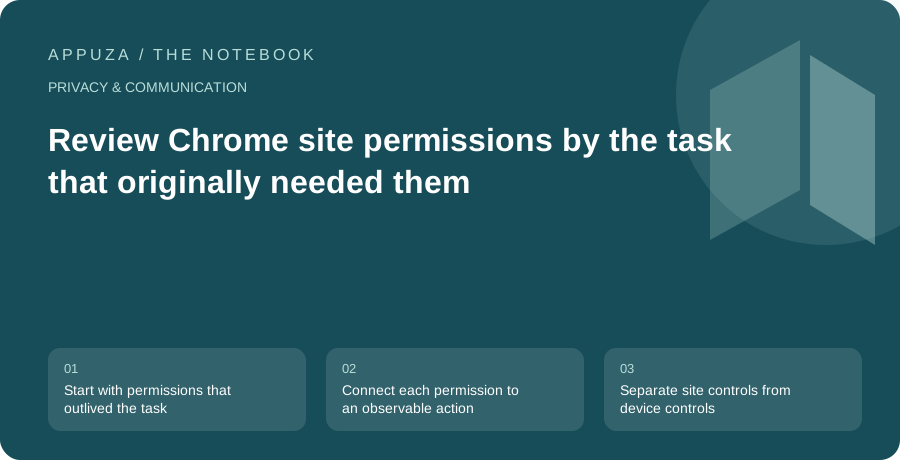
Start with permissions that outlived the task
A website permission often begins with a reasonable request. A meeting needs the microphone, a map needs a location, or a support session needs the camera. Months later, the task may be over while the permission remains part of the browser's configuration. A useful review asks whether the original purpose still exists. It does not assume that every permission is dangerous or that every request deserves permanent approval.
Chrome's help documentation describes both general defaults and site-specific controls, including temporary choices where supported. This article turns those controls into a practical review process. Begin on your own device and avoid changing a managed work configuration without understanding the organization's requirements. The aim is to reduce forgotten access while preserving the tasks you actually use, not to make every website prompt again for its own sake.
Connect each permission to an observable action
A microphone permission should correspond to something such as joining a call or recording a message. Location may support a nearby search, but many sites also allow you to enter a city manually. Notifications should correspond to alerts you deliberately want outside the page. For each allowed site, ask what would stop working if you revoked the permission. If you cannot identify a current task, the permission is a reasonable candidate for removal or reset.
Use the site's actual domain as the identity, rather than relying only on a remembered brand name. A service may use a separate meeting or application domain, while an unfamiliar domain may belong to an old event platform. Investigate uncertain entries through the service's known website before granting broader access. Do not use a permission list as evidence that a site has already misused a capability; it shows a configuration state, not a complete history of what happened.
Separate site controls from device controls
Browser permission is one layer. The operating system may also control whether Chrome can use the camera or microphone at all. A meeting failure can therefore occur even when the website's permission looks correct. Conversely, enabling the browser at the operating-system level does not mean every website should receive access. Keep the layers separate when troubleshooting so that you change only the part relevant to the failure.
For a recurring meeting service, check the site permission, the selected input device, and the operating-system permission in a deliberate order. A muted microphone or an unavailable headset is not fixed by granting additional website capabilities. Test with the application's supported preview or device-check screen when available, using harmless content. This keeps a simple hardware-selection problem from turning into a broad privacy reset that affects unrelated sites.
Prefer temporary access for genuinely temporary work
Where Chrome offers a one-time or visit-scoped option, consider it for tasks that do not need an ongoing relationship. A single support call or a one-off location lookup may fit that pattern. A service used for daily meetings may justify a more persistent choice if you understand the scope and device context. The right setting depends on use, not on a rule that the most restrictive option is always the most practical.
Read the actual prompt before approving it. A request for notifications is different from a request for microphone access, even if both appear during account setup. Some sites present permission prompts before you have reached the feature that needs them. You can often defer the decision until the task provides context. If a page refuses to explain why it needs a capability, use an alternative supported workflow or leave the permission denied until the purpose is clear.
Revoke one category and test the intended workflow
For an old site you no longer use, resetting its permissions can be straightforward. For a current service, change one relevant permission and test the task. If the site asks again when you intentionally use the feature, decide at that point whether to allow it. This makes the request easier to evaluate because it is attached to a concrete action rather than a remembered setup process.
Notifications deserve their own review because their value is often unrelated to the site's other capabilities. A shopping site may need no persistent browser alerts even if you want order emails. A project application may have useful notifications but too many categories enabled within the account. The browser's allow-or-block decision and the service's notification preferences solve different problems. Use the service's own settings to narrow useful alerts where possible, then use browser controls to govern whether that site can interrupt you at all.
For a map website, compare allowing location with entering a nearby city manually. If the manual route satisfies your task, you may not need persistent location access. For a video appointment, the microphone has a clearer functional role. These examples show why permissions should be judged against the requested feature rather than grouped into one universal allow-or-deny preference.
Finish with a smaller, understandable permission map
After the review, keep only a brief note of unusual choices that you may need to explain later. For example, a specific meeting domain may have microphone access because it is used every week, while location remains manual for a weather site. You do not need a spreadsheet of every default. The useful record concerns exceptions whose purpose would otherwise be easy to forget.
Repeat the review after a major change in work, travel, or device sharing. A laptop used privately at home may need different choices when it becomes a family computer. If a website stops working, return to the narrow task-based diagnosis rather than restoring every old permission. A successful cleanup leaves you able to answer a simple question for each important allowance: which feature needs this access, on which site, and for how long? That is a more durable result than either approving every prompt or blocking everything and hoping the browser remains usable.
Official references
These are editorial walkthroughs based on documented features, not claims of a completed device test. Product behavior can change. Send a correction.