 appuza
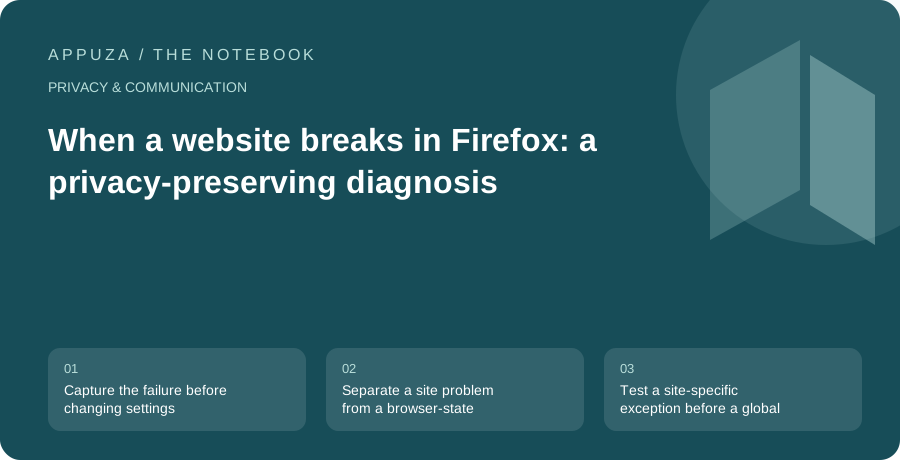
Capture the failure before changing settings
A page that fails to load invites a quick reaction: disable every protection, clear everything, and try again. That can sometimes make the page work, but it destroys the evidence that would explain the failure. It may also sign you out of unrelated services or remove useful local state. A better first step is to describe the smallest action that fails. Does the home page load while the payment widget stays blank? Does a login return to the same screen? Does a document open but refuse to download?
Write down the page, the action, and the visible error without including passwords, payment details, or private document addresses in a public note. Confirm that Firefox is updated through its normal update route and that the device has a working connection. If the site itself reports an outage, browser changes are unlikely to help. This guide is a diagnostic workflow drawn from Mozilla's explanations of tracking protection and browser permissions; it does not identify a particular website as safe or defective.
Separate a site problem from a browser-state problem
Try another ordinary page on the same service and one unrelated website. This establishes whether the failure is narrow or general. If every website fails, investigate the connection before changing a single site's privacy controls. If only one embedded feature fails, consider the systems that feature depends on: a sign-in provider, a payment service, or an external media host may behave differently from the main page. The visible site name is not always the only domain participating in the task.
Next, compare a clean context that does not contain the same extensions or saved session state, using a method appropriate to your device. A separate test profile can be more informative than immediately clearing the main profile. Private browsing is also a different context, but its own privacy behavior means it is not a perfect neutral control. Interpret the comparison narrowly. A site working in another context shows that some environmental difference matters; it does not yet prove that tracking protection is the cause.
Test a site-specific exception before a global change
Firefox's Enhanced Tracking Protection gives users controls associated with individual websites. Mozilla explains that protections can interfere with some page functions and provides a way to change protection for a site. If the evidence points in that direction, use the site's control as a temporary diagnostic step and reload the same failing action. Keep the rest of the browser unchanged so that the result answers one question rather than several at once.
If the action still fails, restore the original setting before moving to the next hypothesis. If it works, you have learned that the exception affects the behavior, not that every protection should stay disabled everywhere. Decide whether the task justifies a narrow exception, whether another supported route is available, or whether you would rather contact the service. A recurring checkout failure and an optional promotional video deserve different tradeoffs. Avoid installing an unfamiliar extension that promises to repair the site simply because an error page recommends it.
Examine extensions one at a time
Extensions can modify pages, block requests, inject controls, or change how downloads work. That makes them useful and also makes them plausible participants in a compatibility problem. Look at the extensions that interact with the failing task. A page annotation tool is more relevant to missing page controls than an unrelated dictionary, though permissions and implementation vary. Disable a likely extension temporarily, repeat the same action, and restore it if the result does not change.
If several extensions could be involved, use a deliberate elimination process instead of random toggling. Record which combination you tested so you do not repeat a failed experiment. When one extension appears responsible, check its official support documentation and update path. The diagnosis may reveal a setting that preserves most of its benefit. It may also show that two extensions overlap. Removing one redundant tool can be a cleaner long-term solution than maintaining a growing collection of exceptions whose original purpose you no longer remember.
Clear only the state that the evidence implicates
A sign-in loop can involve stale cookies or site data, but clearing all browser data is a broad intervention. Before removing anything, make sure you know the account's sign-in method and can complete any required verification. If you have unsaved work in the site, preserve it through a supported method. Then consider removing data for the affected service rather than everything in the browser. Mozilla documents site-specific cookie and data controls; use the current instructions for your version.
After clearing the selected data, sign in again through the service's known address. Do not follow a new login link from an unsolicited message while troubleshooting. Test the original action before restoring custom settings or reopening many tabs. If the failure returns immediately, the cleared data was probably not the full explanation. If it returns only after a particular extension or account is introduced, you now have a more useful report. Include the sequence and a sanitized error message when contacting support, not a full browser history or a screen recording containing secrets.
Finish by restoring the intended privacy posture
Troubleshooting is incomplete until temporary changes are reviewed. Re-enable protections that did not affect the result, remove test profiles you no longer need after preserving relevant information, and close diagnostic sessions. If a site-specific exception remains, record why it exists and when you will revisit it. This can be a simple reminder tied to the next browser or website update. An exception should remain a conscious choice rather than an invisible souvenir of an old problem.
The useful outcome is not merely that a page loads once. It is knowing which condition changed the result and choosing the narrowest acceptable fix. If no clear fix emerges, preserve your normal settings and use the website's support channel or a supported alternative device for the immediate task. A careful sequence saves time on future failures because it produces reusable evidence: the affected action, the relevant browser context, the one change that mattered, and the settings you restored afterward.
Official references
- Mozilla: Enhanced Tracking Protection in desktop Firefox
- Mozilla: clear cookies and site data
- Mozilla: manage optional extension permissions
These are editorial walkthroughs based on documented features, not claims of a completed device test. Product behavior can change. Send a correction.