 appuza
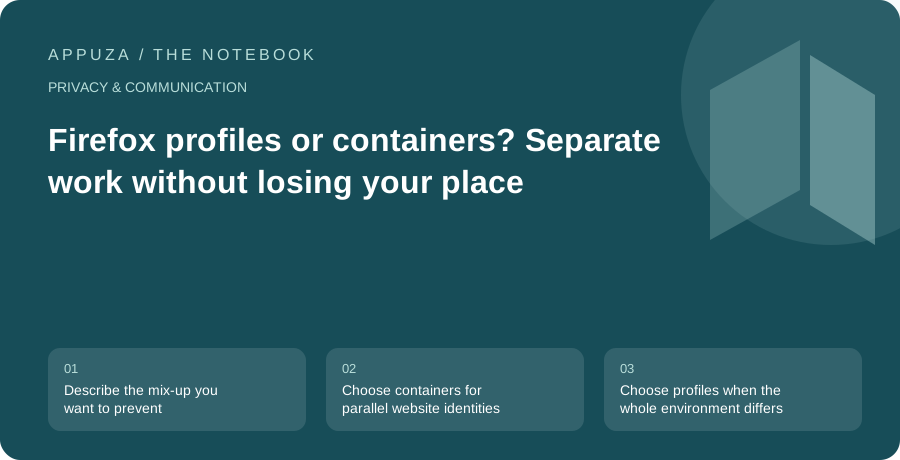
Describe the mix-up you want to prevent
The phrase separate work from personal browsing can mean several different things. You may want two accounts on the same website open at once. You may want work extensions away from personal pages. You may want a family member to use the computer without seeing your history. These are different requirements, and choosing a feature before naming the problem often produces a complicated setup that does not protect the boundary that matters.
Start by writing one concrete failure. For example: I keep sending documents from my personal account because the work service opens in the wrong session. That points toward separating website logins. A different failure, such as a work extension appearing in every browsing window, points toward separating the broader browser environment. If the failure involves another person using your unlocked computer, browser organization alone is insufficient. The operating system account and device access controls belong in the decision too.
Choose containers for parallel website identities
Mozilla's Multi-Account Containers documentation describes a way to separate cookies and website sessions inside one Firefox profile. This is particularly useful when the same service has both personal and work accounts. You can keep those identities in different container tabs while retaining a shared set of browser bookmarks and extensions. That combination is convenient when the problem is selecting the right login, rather than building entirely independent browser configurations.
Imagine a freelance designer with a personal mailbox and a client mailbox at the same provider. A Personal container and a Client container can make the intended session visible through their labels and colors. Keep the names descriptive; a set of colors without meaningful names is difficult to remember when you are tired. Before assigning websites automatically, try opening each account manually in its intended container. Confirm which account appears, then test a link from an email and a bookmark. The external entry points are where an otherwise tidy setup often becomes confusing.
Choose profiles when the whole environment differs
Firefox profiles separate a broader set of browser data and preferences, including bookmarks and extensions. Mozilla contrasts this with containers, which separate website data within a profile. A separate work profile is therefore a stronger organizational choice when you need a different extension set, a different bookmark collection, or a visibly distinct browsing workspace. It also demands more maintenance because a useful change in one environment will not necessarily appear in the other.
For a researcher, a dedicated project profile can keep specialist tools and hundreds of temporary bookmarks away from ordinary browsing. For someone with only two email accounts, that may be unnecessary overhead. Ask whether you benefit from different settings or merely tolerate them. If every new bookmark needs to be copied manually between profiles, the boundary may be too broad. Conversely, if a container setup still leaves distracting work extensions visible everywhere, the boundary may be too narrow. Use the smallest separation that addresses the actual problem without pretending it creates stronger isolation than it does.
Make the boundary visible in ordinary actions
A technically correct setup can still fail through human confusion. Give the environments clear names and distinct visual cues. Put the most important work bookmarks in the work environment and avoid duplicating ambiguous shortcuts that open whichever session happens to be active. When a browser or operating system offers a choice of profile for a link, read it instead of dismissing it automatically. A visible decision at the point of entry is more useful than a sophisticated arrangement that disappears behind an identical icon.
Test common tasks with harmless material. Open a shared document, send a message to your own account, and begin a file upload without completing it. Check the account avatar and destination at each step. These tests reveal whether your workflow keeps the intended identity attached to the task. They are not security penetration tests; they are checks against accidental cross-account actions. If a single website uses several related domains for authentication, consult its sign-in behavior before forcing every domain into different containers, since overly aggressive separation can interrupt legitimate transitions.
Do not confuse organization with access control
A second browser profile does not by itself create a separate person on a shared computer. Someone with access to your unlocked operating system session may still be able to open the other profile. Likewise, a container is not a promise that installed extensions, local administrators, or the device itself cannot observe relevant activity. Treat these tools as browser-state organization features with useful privacy properties, then assess device access separately.
For a household computer, separate operating system accounts are often the appropriate starting point when people need separate files and private sessions. For a managed work device, follow the organization's policy before adding personal accounts or synchronization. A private browsing window is also not a replacement for a persistent work profile: its purpose and retention behavior differ. Avoid collecting all these features into a single category called private. Write down whether you need less retained history, separate website sessions, separate extensions, or separation between users, then choose accordingly.
Keep a simple maintenance and exit plan
After a week, review the actual friction. Did you send anything from the wrong account? Did links repeatedly open in an unexpected environment? Did you create duplicate bookmarks because the separation was inconvenient? Adjust one part at a time. Renaming a container or moving a shortcut may solve more than adding another profile. A useful setup should make the correct action easy to recognize, not require a lengthy mental checklist before every click.
When a client project ends, review the profile or container before deleting it. Identify bookmarks or local information you still need, sign out of accounts through the service where appropriate, and remove access that is no longer authorized. Do not assume deleting a local environment revokes every remote session or shared document permission. Those are separate service-level tasks. The best long-term result is a small, understandable map: which identity belongs in which environment, what information is shared between them, and what must be checked when a new link or account enters the workflow.
Official references
- Mozilla: Multi-Account Containers
- Mozilla: manage Firefox profiles
- Mozilla: privacy and security features
These are editorial walkthroughs based on documented features, not claims of a completed device test. Product behavior can change. Send a correction.