 appuza
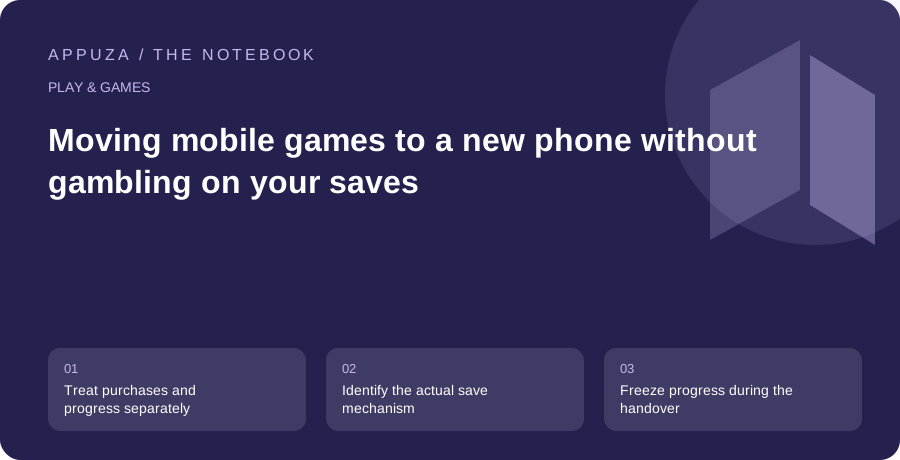
Treat purchases and progress separately
A game purchase proves an entitlement to obtain or use something; it does not necessarily contain the latest state of your campaign. Likewise, seeing an achievement on a new phone does not prove that the full save has arrived. Before moving devices, distinguish the store account, any platform gaming profile and the developer's own login. Some titles use several of these at once. Google documents how linked progress relates to a Play Games profile, but individual games still determine which progress is supported and how it is restored.
Start an inventory while the old phone still works. For each game you care about, write its name, the visible player identifier, the sign-in method and the current milestone. Use a milestone that is easy to recognize, such as a chapter name, town level or inventory item. A screenshot can help you compare the two devices, but it is evidence of a state, not a usable backup. Keep this private; account identifiers and recovery details do not belong in a public support post.
Identify the actual save mechanism
Look for the developer's instructions on account linking, cloud saves, local backups or device transfer. These mechanisms are not interchangeable. A transfer code may be intended for one migration and could expire. A file copy may require a particular folder and compatible game versions. A login may restore server-side progress but omit device-specific settings. If the game offers an explicit backup or upload action, check the timestamp or confirmation rather than assuming that opening the app completed the upload.
Make a small table with four columns: game, save mechanism, recovery route and latest confirmed milestone. Mark an unknown mechanism as unknown. That simple label prevents an unverified assumption from turning into a factory reset. If a game has no supported transfer method, decide whether its progress is important enough to keep the old device. Do not install a random save-transfer utility merely because it promises a universal solution; access to another application's private data is not a routine requirement for a legitimate migration.
Freeze progress during the handover
Choose a stopping point and avoid continuing the same campaign on both phones while you migrate. Parallel sessions can create two plausible save states, and a conflict dialog may not make the difference obvious. Finish the current activity, return to the game's normal save point and allow any documented synchronization to complete on a stable connection. Record the milestone and time. If there is a supported export, keep an untouched copy outside the old phone before changing anything else.
On the new phone, install through the official store and use the intended account from the beginning. Be especially careful with sign-in buttons that look similar but represent different identity providers. If the game starts a new tutorial, do not immediately conclude that the old progress is gone. It may be waiting for account linking. Equally, do not rush through a new campaign and upload it over the older one. Stop and consult the developer's recovery instructions when the account state is unclear.
Resolve conflicts by evidence
A save conflict may show a local record and a cloud record. Compare meaningful details rather than automatically choosing the newest timestamp. Device clocks, a newly created tutorial save and a delayed upload can make time alone misleading. Look for the chapter, currency balance, play time or character identity that matches your record. If the dialog supplies too little information, cancel when possible and seek official support before choosing an irreversible replacement.
When contacting support, provide the game version, operating system, player identifier and a concise description of what happened. Include transaction receipts only through the developer's official support channel when relevant. A purchase receipt may help establish ownership but does not automatically restore every lost item. Avoid posting passwords, authentication codes or complete billing details. A clear report separates the facts you observed from the actions you tried, making it easier for support to understand the point at which the migration diverged.
Verify a useful session on the replacement
Once the expected save appears, inspect more than the title screen. Open the relevant character or campaign, check several recognizable items and complete a small reversible activity. Close the game normally and reopen it. Confirm that the new progress remains. Then check paid content separately through the game's documented restoration flow. Consumable purchases, subscriptions and permanent unlocks can follow different rules, so a restored base game is not proof that every entitlement behaves identically.
Also inspect settings that affect comfort and privacy. Control layouts, accessibility preferences, download quality and notification permissions may be stored locally rather than in the game account. A new phone can therefore display the correct campaign while feeling unexpectedly different. Restore the controls you actually use before attempting a difficult level or competitive match. Download optional assets on Wi-Fi if appropriate, and check the total installed size before assuming the migration has finished.
Keep the old device until the evidence is complete
Do not erase the old phone immediately after the first successful login. Keep it unchanged until your important games have passed their reopening checks and any supported backup is stored safely. The required waiting period depends on your own confidence and the developer's save system, not an arbitrary number of days. If you are trading in the device, schedule the migration early enough to leave room for support questions and slow downloads.
Your completion criterion should be concrete: the right account, the expected milestone, a successful new save, restored relevant purchases and a documented recovery path. After that, follow the phone manufacturer's instructions for removing accounts and resetting the old device. A careful migration is mostly an exercise in preserving evidence and avoiding conflicting writes. The most expensive mistake is often not a technical failure but deleting the only working copy before checking that its replacement is genuinely usable.
A save migration record with a stop condition
A store purchase, a platform profile and a developer account can be separate identities. Keep the old installation until the destination shows the specific progress you intended to preserve.
| Record | Evidence on the old device | Acceptance on the new device |
|---|---|---|
| Exact edition | Title, publisher, platform and edition | The destination is the same supported edition or an explicitly supported transfer. |
| Account route | Developer login, platform profile or documented local-only save | The correct account is selected before a new game is created. |
| Recognizable progress | Chapter, level, character or inventory milestone without private credentials | The same milestone is visible, not simply an empty account with the same name. |
| Supported transfer method | Current developer instructions and any exclusions | The documented process completes without guessing about cloud support. |
| Conflict prompt | Which save each choice refers to and its timestamp if supplied | Stop and resolve uncertainty before overwriting either copy. |
| Final retention decision | Old device and backup kept until acceptance | Erase or trade in only after the required progress is verified. |
Worked example — hypothetical, not a device test
Pat can reinstall a purchased game on a new phone, but that proves ownership rather than save transfer. The old phone shows a chapter-seven character while the new phone opens a tutorial. Pat stops instead of accepting a cloud-conflict prompt blindly. The worksheet identifies the edition and the account route, then points to the developer’s transfer instructions. The old installation remains the recovery reference until the chapter-seven state is actually visible on the replacement.
Keep your completed copy on your own device. Appuza does not receive worksheet entries.
Official references
These are editorial walkthroughs based on documented features, not claims of a completed device test. Product behavior can change. Send a correction.